
Tracing where first-time users dropped off, and redesigning the flow
What stands between opening an AI slide tool and your first finished deck?
MagicSlides turns a prompt, a document, a PDF or a link into a finished presentation in minutes. As a partner brief for the C11 cohort at 10k Designers, I audited its first-time experience and redesigned it, working alone over about two weeks.
UX research
The product, its audience and five rival tools.
Testing
Two real people making their first deck in the live app.
Redesign
A new first-run flow built around the moment the product proves itself.
People leave before they finish their first deck.
For an AI tool, the first try matters more than usual. The promise is an hour of work done in seconds, so if that first try stalls, the promise feels broken rather than delayed.
It went wrong in two ways. Some people gave up before a deck existed: too many steps, and choices asked for before they had any context. Others got a deck that didn’t impress them or was hard to change.
The original first run, recorded on a phone, in order.
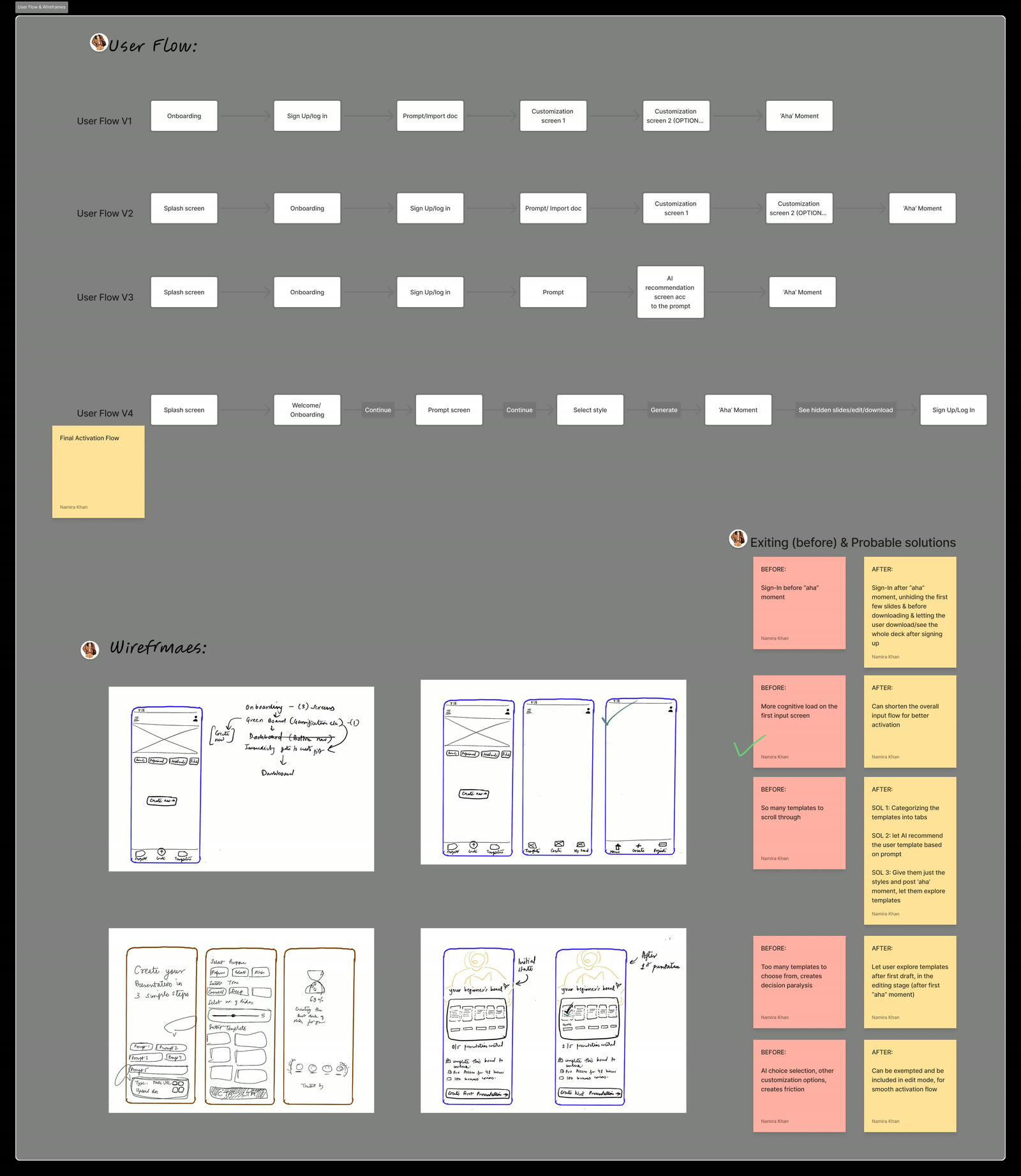
Show the deck first, ask for the account after.
After four versions of the flow, the redesign moves everything a first deck doesn’t need (signing in, browsing templates, detailed settings) to after the user has seen the product work.
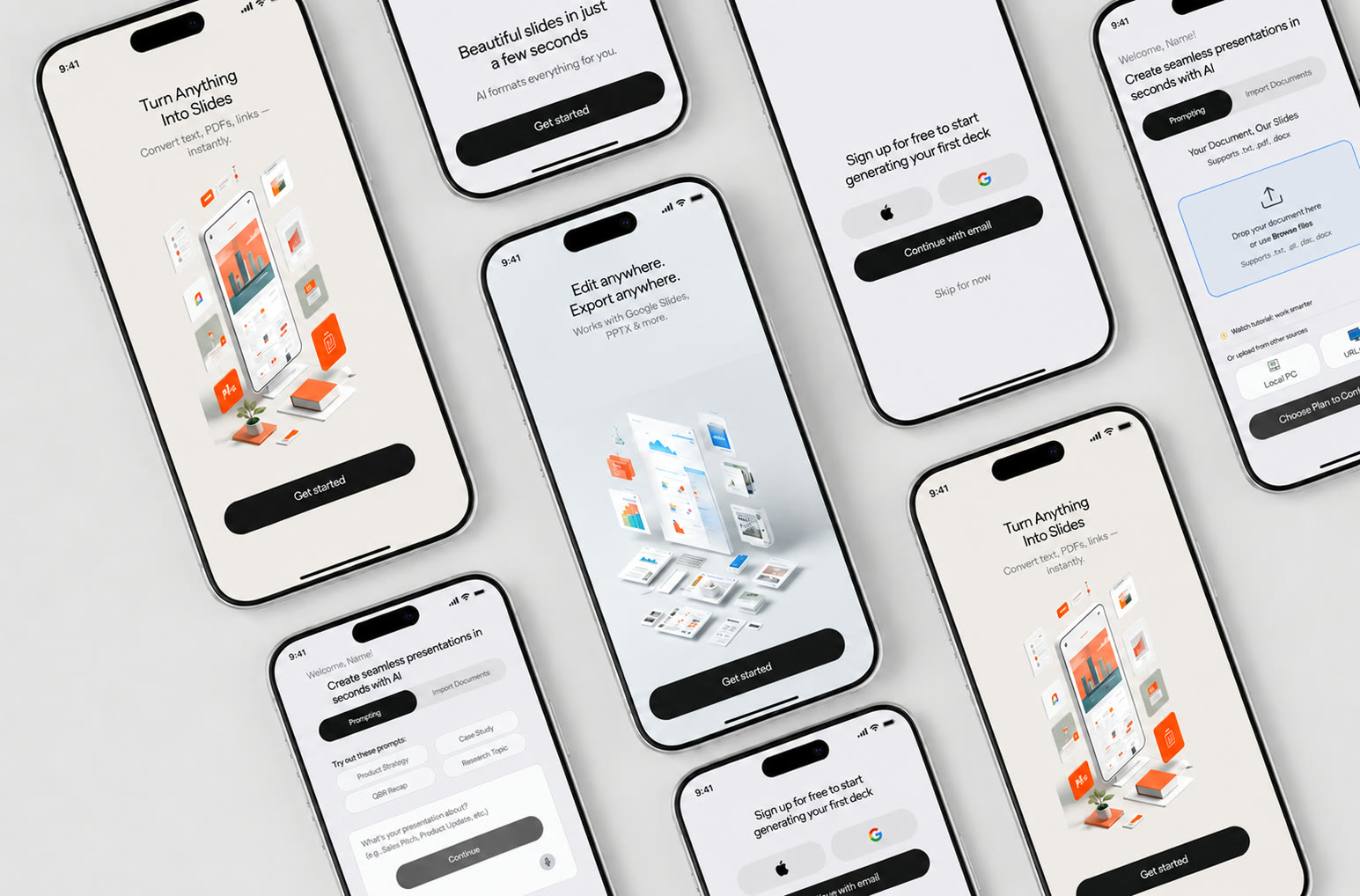
The final flow. Sign-up now comes after the first deck, not before it.
Sign-in moves after the first deck.
The first slides appear with nothing in the way. Downloading and seeing the full deck ask for an account, and that step can be skipped for now.
A few styles instead of a wall of templates.
One short choice with one clear selected state. The full template library moves into editing, where there’s a draft to compare it against.
One prompt, one field.
The helper text now reads as an example, so people stop typing over it.
Settings move to editing.
AI options and other customisation no longer stand between a new user and their first deck.
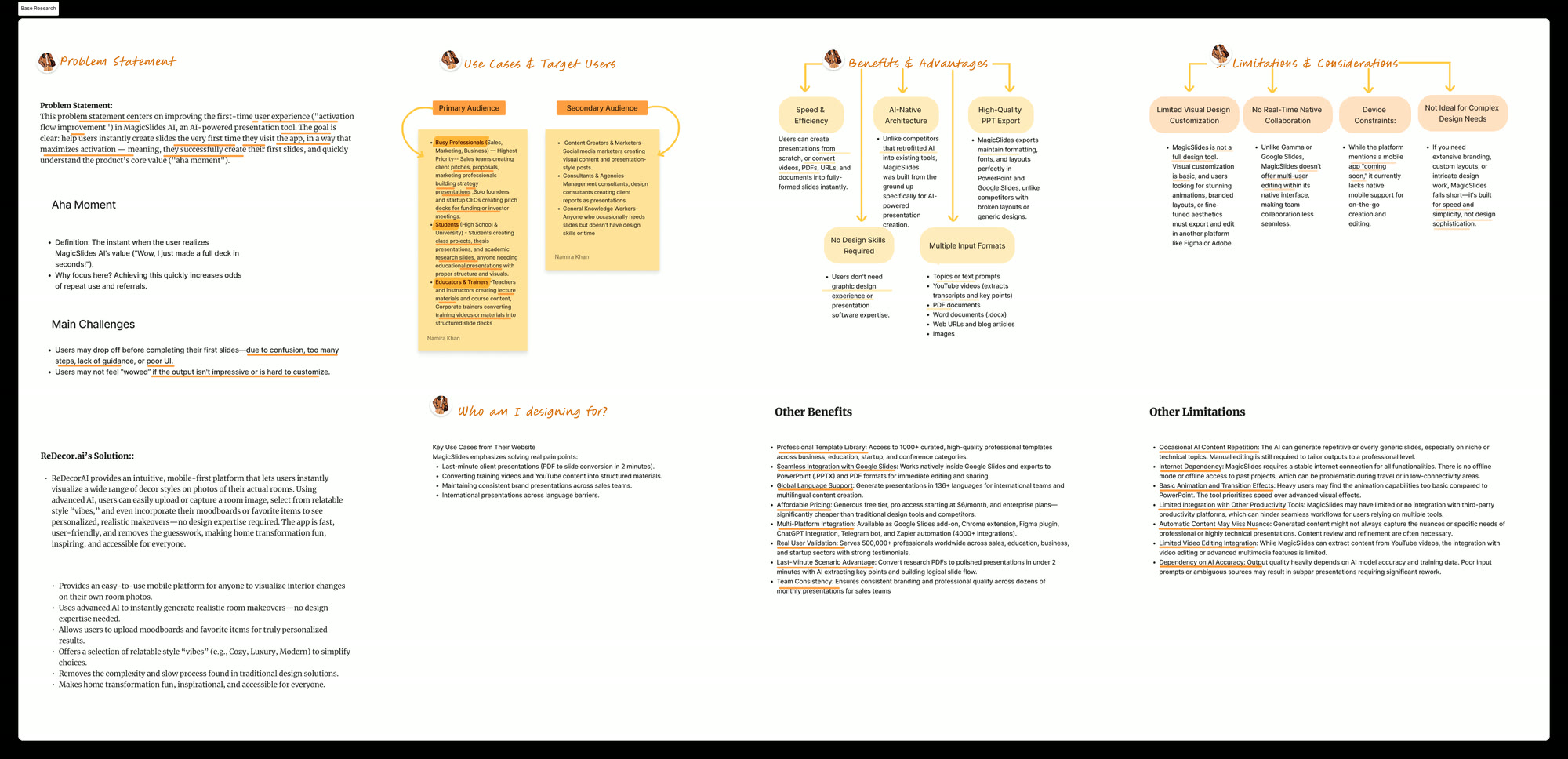
Who it’s for, what it does well, and where it falls short.
Before touching a screen, I wrote down who MagicSlides serves and what it’s actually good at, so the redesign had something to answer to.
- Busy professionals: pitches, proposals and investor decks, fast.
- Students: class projects that need structure.
- Educators and trainers: lectures and workshop material.
- Also: marketers, consultants and anyone short on design time.
- Strong: speed, many kinds of input, and clean export to PowerPoint and Google Slides, with no design skill needed.
- Weak: basic visual control, no real-time collaboration, limited on mobile, and not built for sophisticated design.
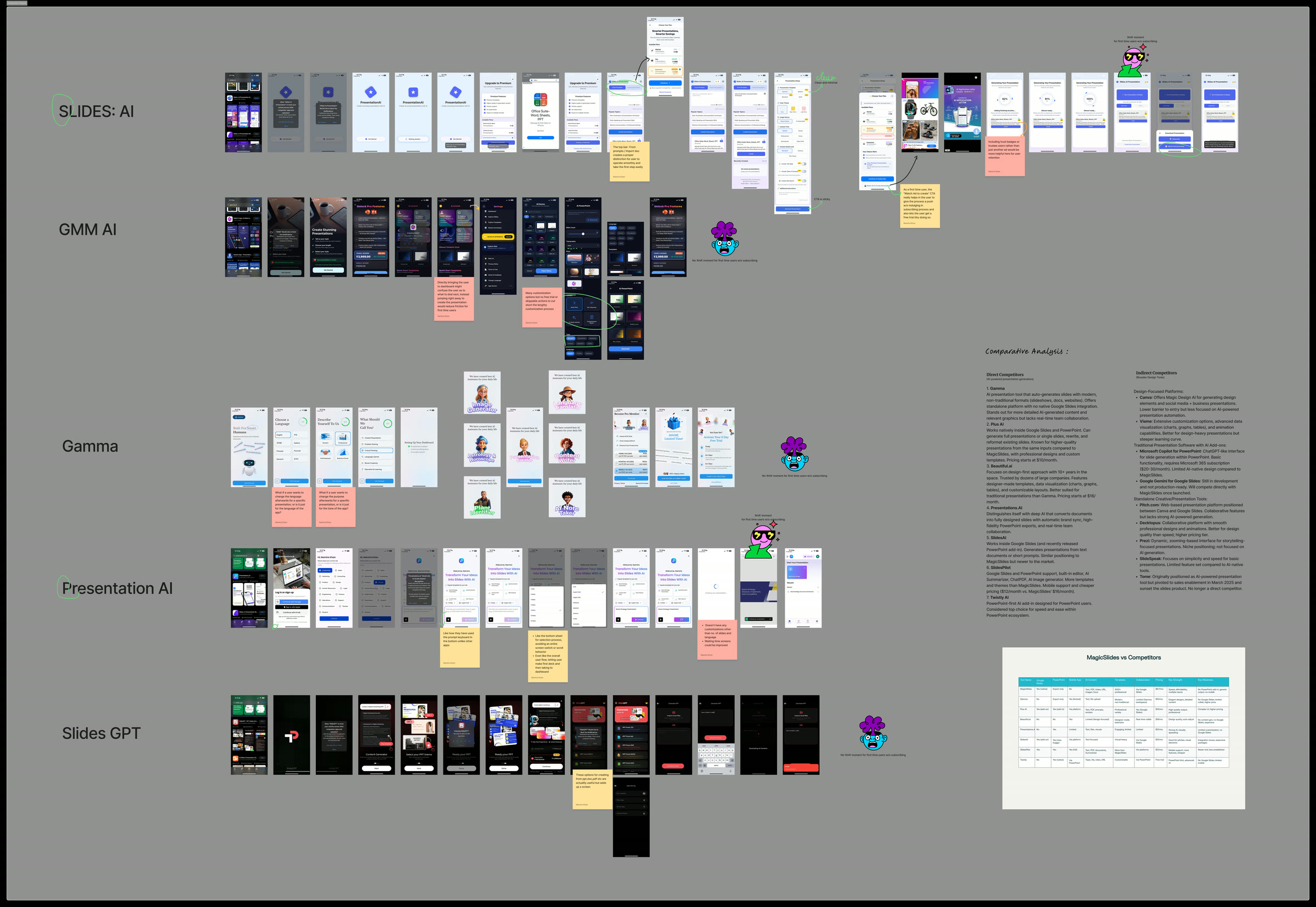
Five rival tools, tried as a first-time user.
I went through the first-run flow of five competitors myself and captured each one screen by screen. They fell into three groups, and MagicSlides competes in only one.
Standalone generators
Gamma, Presentations.AI. Their own app, winning on speed and format.
Add-ins inside a suite
Plus AI, SlidesAI. Cheaper, living inside Google Slides or PowerPoint.
Design-first builders
Beautiful.ai. Template-led, better for polished than for fast.
Two real people, each making their first deck.
I watched a college student and a working professional use the live app, and marked each hesitation on the screen where it happened. Public app-store reviews went alongside.
College student
Comfortable with tech, moves fast and skims. Makes a lot of decks for class.
Working professional
Less comfortable with tech and impatient. Needs precise decks for work, and gets frustrated fast.
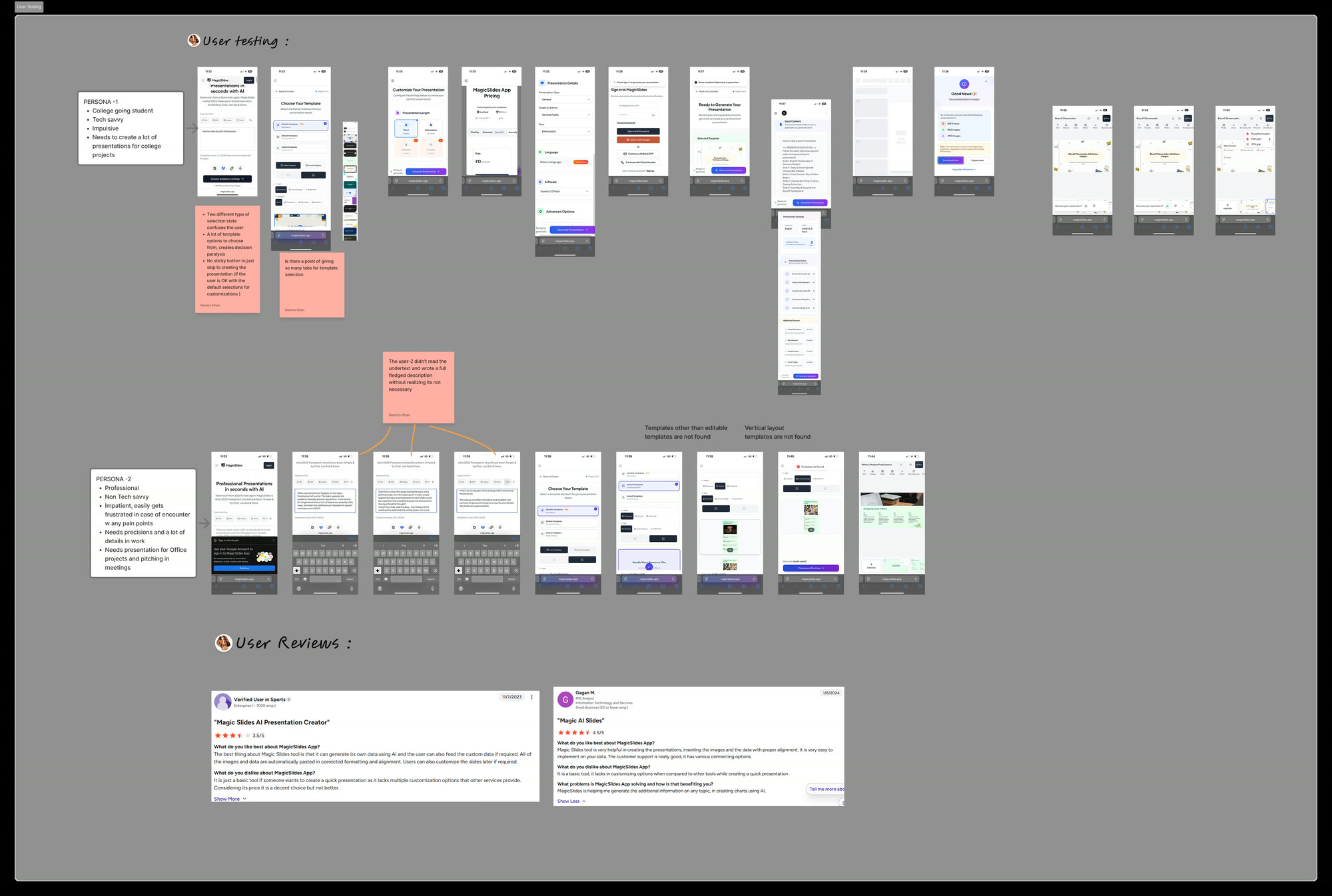
What both of them ran into.
Sign-in came before they’d seen anything.
They were asked to create an account before there was any proof it was worth it. This was the biggest leak.
Too many templates, too early.
A long list of choices arrived exactly when they knew the least, and stalled them before generating anything.
Two different “selected” looks.
Templates had two selected-looking states, so neither tester could tell what they’d actually picked.
No quick way past the options.
There was no “skip, create now” button, so people happy with defaults still had to go the long way.
Example text looked required.
The helper text in the prompt field read like something to fill in, so they typed over it.
Four versions of the flow, each one answering a finding.
I rebuilt the flow four times. Each version was checked against the findings above, until every step in it could name the problem it solved.
A warm visual direction for an AI tool.
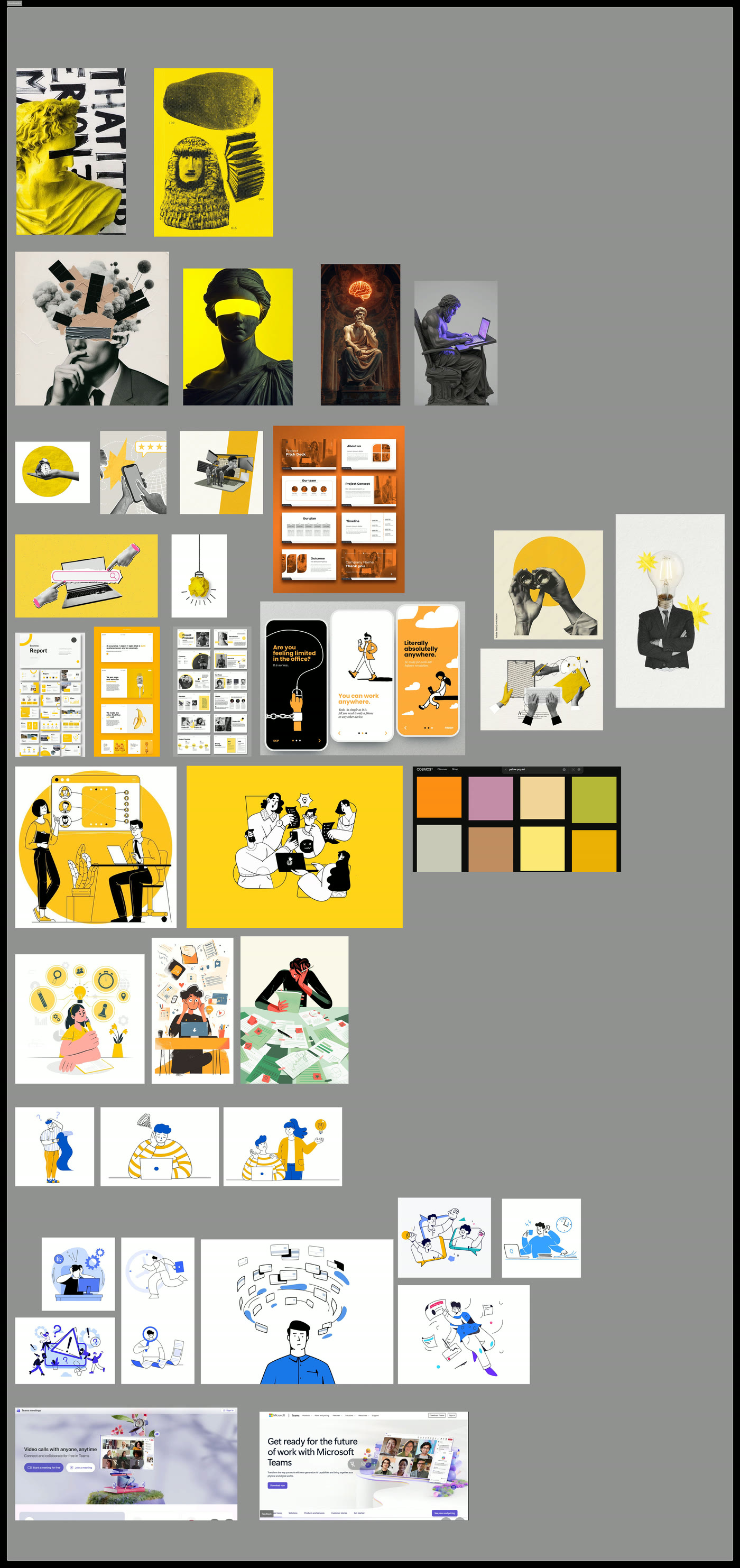
Before styling a screen, a moodboard set the direction: a yellow-led palette, collage and editorial layouts, and a flat illustration style.
The aim was to keep an AI tool feeling friendly and human, not cold or technical.
A free first deck costs MagicSlides money.
Every deck generated costs the company money, including decks made by people who never sign up. So the real question wasn’t whether to ask for an account, but where. I compared two options.
Show part of the deck
Generate the whole deck but show only the first few slides until sign-up. Cheaper, but a blurred or hidden deck can feel like a trick.
One full free deck
Show the complete first deck and ask for an account only at download and on the second try. It costs more per visitor, and makes a much stronger first impression.
I recommended Option B. The people who sign up after seeing it work are the ones most likely to stay, and remembering the first run on the device limits the cost to one free deck per person.
A redesign proposal, reviewed by mentors.
Partner brief
Set by MagicSlides for the C11 cohort at 10k Designers.
Mentor review
Reviewed by 10k Designers mentors, with positive feedback.
What I learned
Activation is a business number with a screen attached.
Every step before the first deck is something a new user pays for on trust. Once I looked at the flow that way, deciding what to move was simple, and easy to explain to people who don’t care about design.
Watch people; don’t just ask them.
Watching two people use the app showed friction neither of them would have mentioned in an interview, like typing straight over the example text in the prompt field.